4K Webcam FAQ And Operational Questions
*This video provides detail of 4K Webcam.
*This video provides detail of 4K Webcam.
*This video provides detailed instructions on how to correctly power on/off touchscreens.
*This video provides detailed instructions on how to set up Scheduled power on/off to avoid forgetting turn off the touchscreen.
*This video provides detailed instructions on how to set up date, language and famous quotes. Allows you to instantly update messages or set up a countdown timer as needed.
*This video provides detailed instructions on how to use and unlock Child Lock to avoid students using touchscreen during the break time.
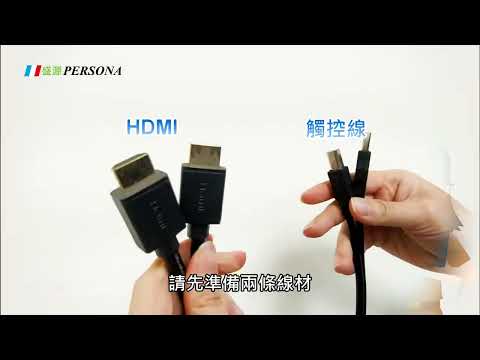
*This video provides detailed instructions on how to connect your laptop and touchscreen. You will need an HDMI cable and a touch cable. HDMI1 ↔ TOUCH1, HDMI2 ↔ TOUCH2.
*This video provides detailed instructions on how to set up and access the floating window. Clients can customize the floating window display based on usage preferences.
*This video provides detailed instructions on Floating Window shortcuts that allow clients to access apps as soon as possible.
*This video provides detailed instructions on how to operate screen recording. It's compatible with both Android and Windows systems.
*This video provides detailed instructions on how to operate annotation. It allows clients to annotate while presenting or teaching.
*This video provides detailed instructions on digital whiteboard built-in functionalities.
*This video provides detailed instructions on how to set up multiple points while using digital whiteboard.
*This video provides detailed instructions on how to create a new page. It allows clients to keep all notes during meetings or teaching.
*This video provides detailed instructions on how to save notes and generate a QR code.
*This video provides detailed instructions on how to change background wallpaper, for example to music stave for music class.
*This video provides detailed instructions on file management – similar to a computer file explorer.
*This video provides detailed instructions on how to access files using USB – read, duplicate, and delete files easily.
*This video provides detailed instructions on how to turn off the screen alert sound.
*This video provides detailed instructions on how to troubleshoot issues when connecting the touch screen.
*This video provides detailed instructions on how to synchronize the screen of two monitors.
If you have any questions or need further information about our products, please feel free to contact us.
Contact Us